
vSID EDMM FIR (en)
Overview
vSID supports SID, departure runway and initial climb selection in EuroScope. This guide describes the supplied configuration and the indications used during daily operation.
Suggestions depend on the flight plan, active runways and airport rules. Check the proposed clearance before issuing it. An item shown as assigned does not replace the clearance received flag.
Lists and colours
Day layout
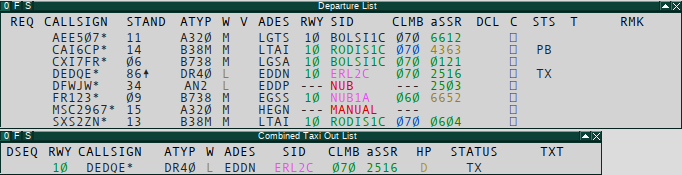
Night layout
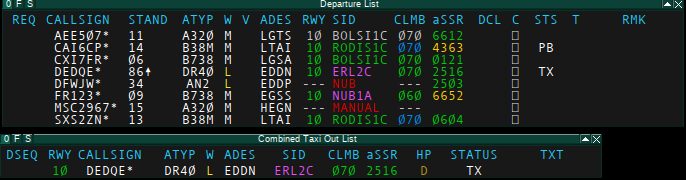
SID
- Neutral grey: Suggested SID
- Green: Suggested SID assigned
- Muted yellow: SID suggestion for a runway specified by ATC that differs from the normal suggestion; SID not yet assigned
- Yellow: Assigned SID differs from the normal suggestion
- Red waypoint: A SID is available but requires coordination; coordinate or amend flight plan
- Red
MANUAL: No suitable SID for the filed flight plan; coordinate or amend the flight plan - Magenta: Refer to local SOPs.
Initial climb (CLMB)
- Neutral grey: Suggested initial climb
- Green: Climb via SID to
<level> - Blue: Climb to
<level> - Yellow: Custom initial climb set
- Magenta: Refer to local SOPs.
Departure runway (RWY)
- Neutral grey: Suggested runway
- Green: Runway set
- Yellow: Set runway is not an active departure runway
Assigned squawk (ASSR)
- Green: Assigned squawk correctly set
- Yellow: Assigned squawk has not yet been set by the pilot
Daily use
Departure clearance
- Check the active departure runways and the filed route.
- Review the proposed runway, SID and initial climb. Pay attention to coloured deviations and highlights.
- Assign the required values using the corresponding menus or assignment functions. See Mouse controls for the profile bindings.
- Issue the clearance and set the clearance received flag.
Ensure the runway is included in the flight plan's SID/RWY entry so that all controllers see the same SID, regardless of their local runway setup. See Plugin Usage.
Auto Mode
Coordinate who runs Auto Mode: only one controller should use it for an airport. Before enabling it, check the clearance received flags for aircraft already cleared.
| Command | Action |
|---|---|
.vsid auto |
Toggle Auto Mode for eligible active airports |
.vsid auto status |
Check where Auto Mode is active |
.vsid auto off |
Disable Auto Mode for all active airports |
Eligibility depends on the online controller positions. A lower station coming online automatically deactivates Auto Mode; a station at the same level does not.
During a controller change, activate Auto Mode only after the previous controller or lower station has disconnected. Coordinate with stations at the same level to ensure that only one controller runs Auto Mode for the airport. For exceptions and forced activation, see Auto Mode.
Runway change
Changing the active runway configuration in the airport dialog updates vSID's SID suggestions. Without Auto Mode, apply any required changes manually.
With Auto Mode active:
- Without clearance received flag: The new SID is assigned automatically.
- With clearance received flag: The existing assignment is retained. Apply any required change manually and issue a revised clearance. Left-click SID to apply the new suggested SID.
- Before changing runways: Check that the clearance received flags correctly reflect all clearances already issued, so that Auto Mode does not overwrite their SID assignments.
See Runway change.
Requests
Record a request when received and update it as it is handled. The local request timer colours are:
| Waiting time | Colour |
|---|---|
| Below 2 minutes | Grey |
| From 2 minutes | Amber |
| From 5 minutes | Red |
These thresholds indicate waiting time; they do not grant a clearance. Ground-target request indicators are configured orange.
Ground-target indicators
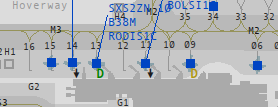
Pushback, request and intersection indicators are enabled for Ground Radar display.
- Pushback: The arrow appears with ground status pushback. It does not specify a pushback direction or the aircraft's facing.
- Intersection: Green means assigned; yellow means able. “Able” records capability, not an intersection clearance.
Startup overview and handover
- Startup counter: Open
.vsid menuand select an airport. It counts active startup approvals through the subsequent departure ground states; entries leave the counter at 50 kt during takeoff. - Handover:
.vsid syncsends current requests, ground states and clearance received flags to other controllers. See startup counter and synchronization command.
Mouse controls
Shared departure fields
These bindings are configured in the Departure List, Combined Taxi Out List and Startup List wherever the corresponding field is displayed.
| Field | Left mouse button | Right mouse button |
|---|---|---|
| RWY | Open runway menu | Select runway intersection as able |
| SID | Set/reset suggested SID | Open SID menu |
| CLMB | Open cleared flight level (CFL) menu for departures | Open requested flight level (RFL) menu |
| ASSR | Auto-assign squawk via TopSky | Open assigned squawk (ASSR) menu |
Departure List
| Field | Left mouse button | Right mouse button |
|---|---|---|
| REQ | Open request menu | — |
| C | Toggle clearance received flag; set SID when marking clearance received | — |
Combined Taxi Out List
| Field | Left mouse button | Right mouse button |
|---|---|---|
| HP (intersection) | Set runway intersection | Select runway intersection as able |
Use the distinction between assigned and able when recording an intersection. The right-button action on RWY records able; it does not assign the intersection.
The Startup List setup confirms the shared RWY, SID, CLMB and squawk actions. The plugin also registers Request Timer, Departure Transition and Handover Flag items. Their mouse bindings are not documented here because the supplied operational views do not establish where they are displayed. Hidden list fields remain outside this guide.
Phoenix Tower Label
| Field / location | Left mouse button | Right mouse button |
|---|---|---|
| AFL (actual flight level) | Toggle the landing clearance indicator: set it or clear it | Open CFL Menu |
The landing clearance indicator is displayed in the Phoenix Tower Label. Update it when a landing clearance is issued or cancelled. The landing clearance indicator is synchronized between controllers.
Landing-clearance colours are: green when set, amber for caution and red for warning. Configured distance thresholds are 20 NM / 4 NM, with altitude thresholds of 1,500 ft / 500 ft AGL.
If vSID detects a go-around from the aircraft climbing again, it automatically clears the landing clearance flag and temporarily suppresses the warnings.
Special cases and troubleshooting
| Situation | Check / action |
|---|---|
| Red SID waypoint | A SID is available but requires ATC clearance; coordinate or amend the route. |
Red MANUAL |
No suitable SID for the filed flight plan; check and amend the flight plan as required. |
| Magenta procedure or climb | Review the highlighted procedure. A highlight alone is not an error. |
| Unexpected runway suggestion | Check the active runway setup and airport-specific rules. |
| Ground-target indicator missing | Check ground status, display type, zoom and vSID drawing permissions. |
| Controller data appears incomplete after handover | Ask the handing-over controller to send .vsid sync. |
vSID needs drawing permission on the relevant radar screens for its synchronization features. See Installation.