
vacs Guide
vacs is a new tool we are testing to enable better controller coordination.
Even when you are available on vacs, you are still required to be always reachable on our TeamSpeak server while controlling!
Download
vacs isDownload
VATGER availableStation onProfile GitHubDownload (see explanation below)
Setup
You can find the Setup page in the upper right corner.
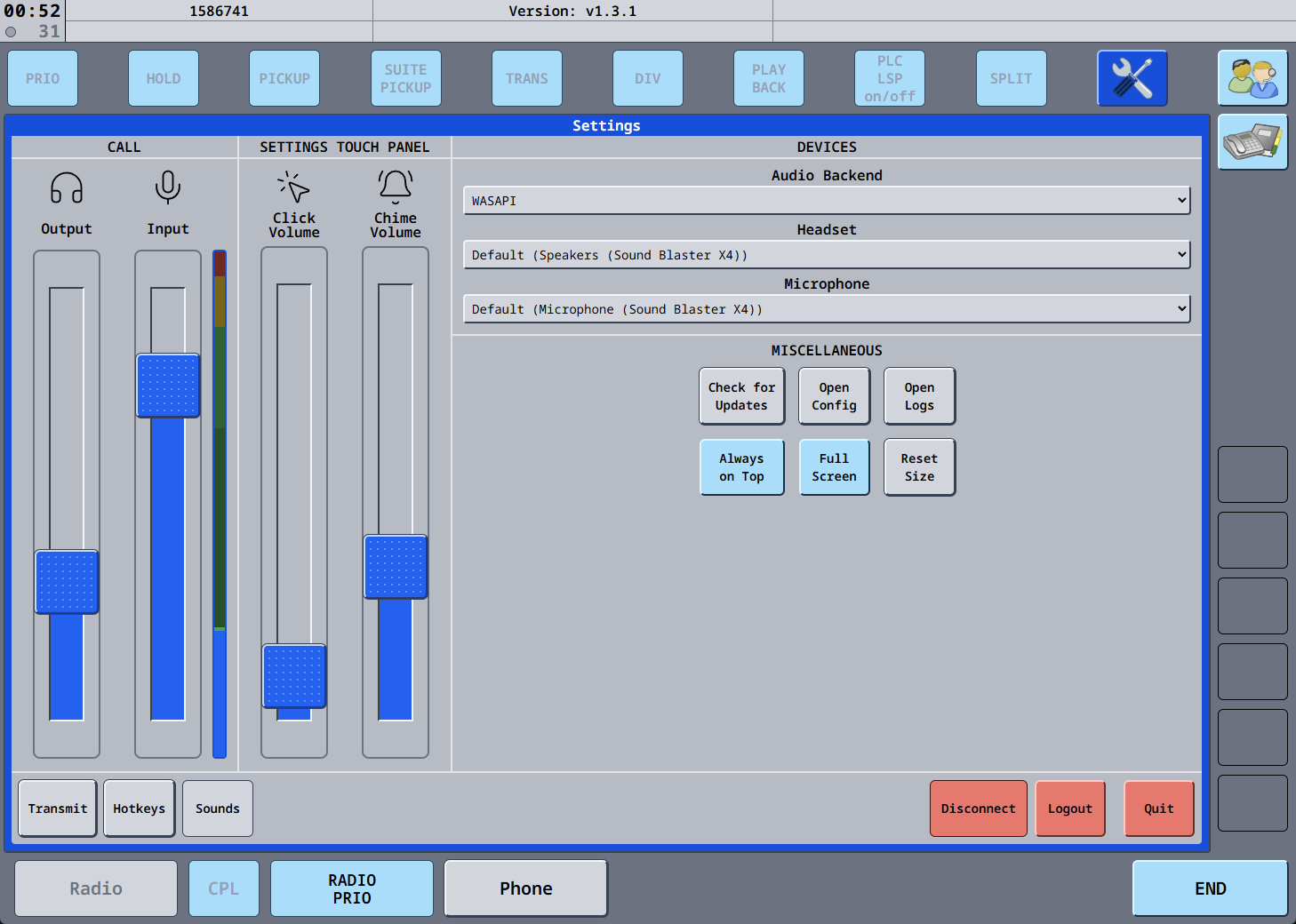
On this page, you can select your Audio devices, and set volume levels.
Tip: To enable the audio level meter next to the Input slider, click on it.
TX config
To set up how you want to transmit your voice, click on "Transmit" in the lower left corner. Push-to-mute, push-to-talk, and voice activation should be self-explanatory.
vacs features a special mode called "Radio Integration". It allows you to use one single hotkey for both vacs calls and your normal transmissions on Audio for Vatsim/TrackAudio.
When using Audio for VATSIM, you need two hotkeys, one that you use, and one that is internally triggered by vacs and then received by Audio for VATSIM. You can set your hotkey in the "MODE" section, and then set the internal hotkey in the "RADIO INTEGRATION" section and in the Audio for VATSIM client.
When using TrackAudio, you only need one hotkey, as vacs triggers the transmission via the TrackAudio API.
To force the PTT to make a frequency transmission during a coordination call, use the RADIO PRIO button.
Station Profiles
To help you find relevant stations quickly, we have published a VATGER-wide set of station profiles.
Download the filters from GitHub, then open the Mission page. Click on "Select stations config" and select the downloaded file:
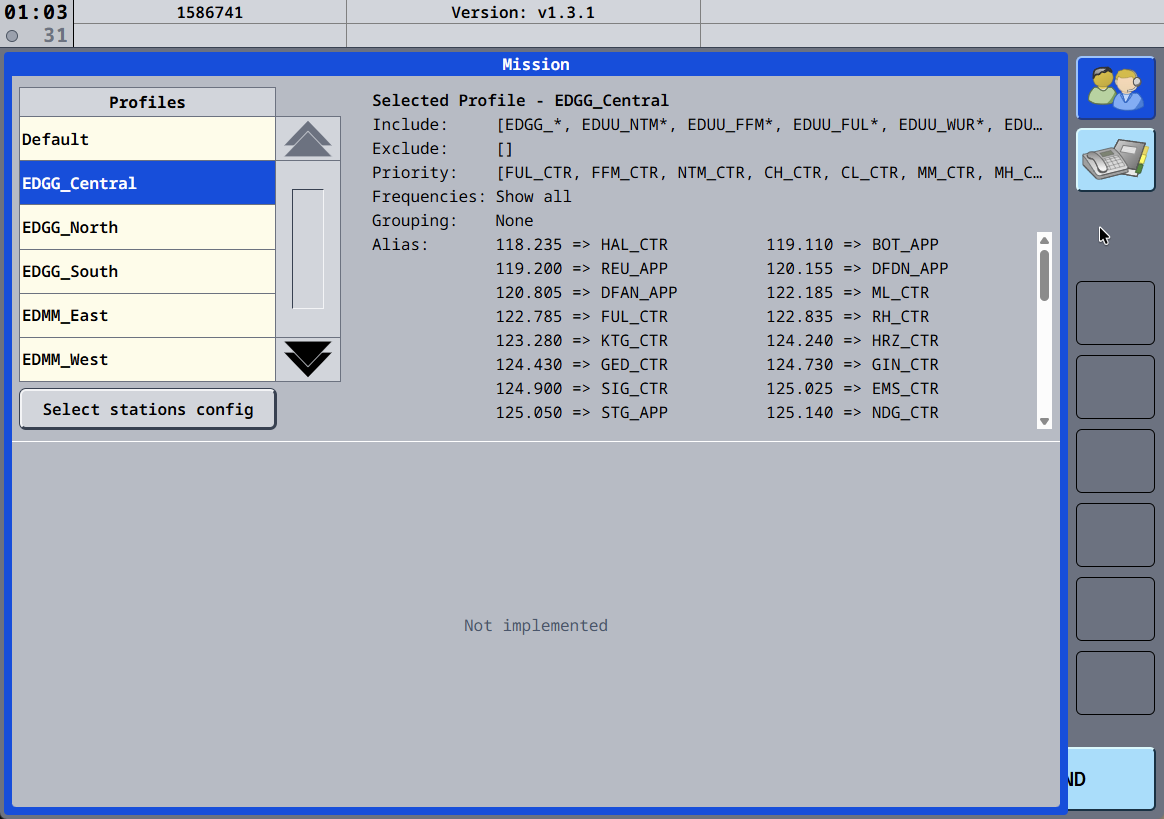
Available Profiles
| Name | Description / Coverage |
| Default | Displays all stations worldwide, can be used if you cannot find the desired station. |
|---|---|
| EDGG_Central | GIN area (EDDF) |
| EDGG_North | PADH area (EDDK, EDDL) |
| EDGG_South | DKB area (EDDS, EDDF) |
| EDMM_East | HOF area (EDDP, EDDN, EDDC) |
| EDMM_West | ZUG area (EDDM) |
| EDWW | Complete Bremen FIR |
Usage
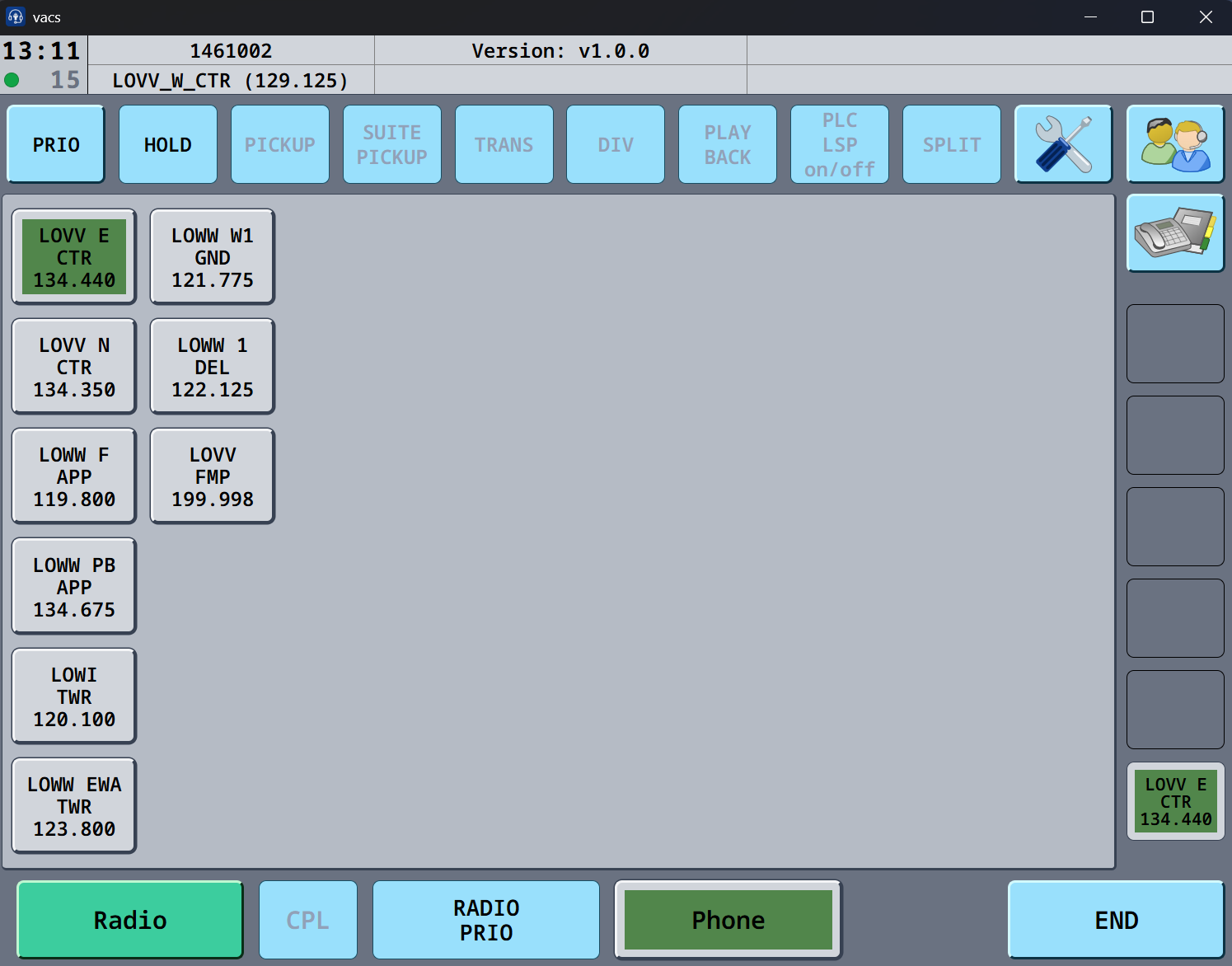
On the main page, you will see all online stations that are logged in to vacs. You need an active controller connection to be able to connect to vacs.
Click on any station button to establish a call. While ringing, the button will be shown partially in green (like above), when the call is fully established it will be fully green. Click on END to end the call, or to navigate one layer up in the station selection list.
If you use the Radio Integration feature, use RADIO PRIO to switch between coordination and frequency during coordination.
When accepting a call, wait for the circle in the upper left corner to turn green, only then the connection is established.