
Euroscope Installation
EuroscopeEuroScope is a very powerful software used forto theprovide AirATC Trafficin Controller (ATC)Germany on the VatsimVATSIM network. It is important to setupset up the software correctly,correctly according to this guide before controlling. It will take some time until you feel familiar with it.it, our documentation and your instructors will help you with that.
InstallationInstallation: Euroscope
Downloads – both are required
Visual C++ Redistributable x86: https://aka.ms/vs/17/release/vc_redist.x86.exe
EuroScope Version 3.2.3.2: https://euroscope.hu/install/EuroScopeSetup.3.2.3.2.msi
The currently tested and approved EuroScope version is 3.2.3.2.
There are newer versions (3.2.4+), however these versions all have been causing various issues and are not approved for usage in Germany.
Versions 3.2.3 and older will also not work due to new VATSIM authentication requirements. For further information check your respective NAV team's announcements.
Please install the software into a directory of your choice.
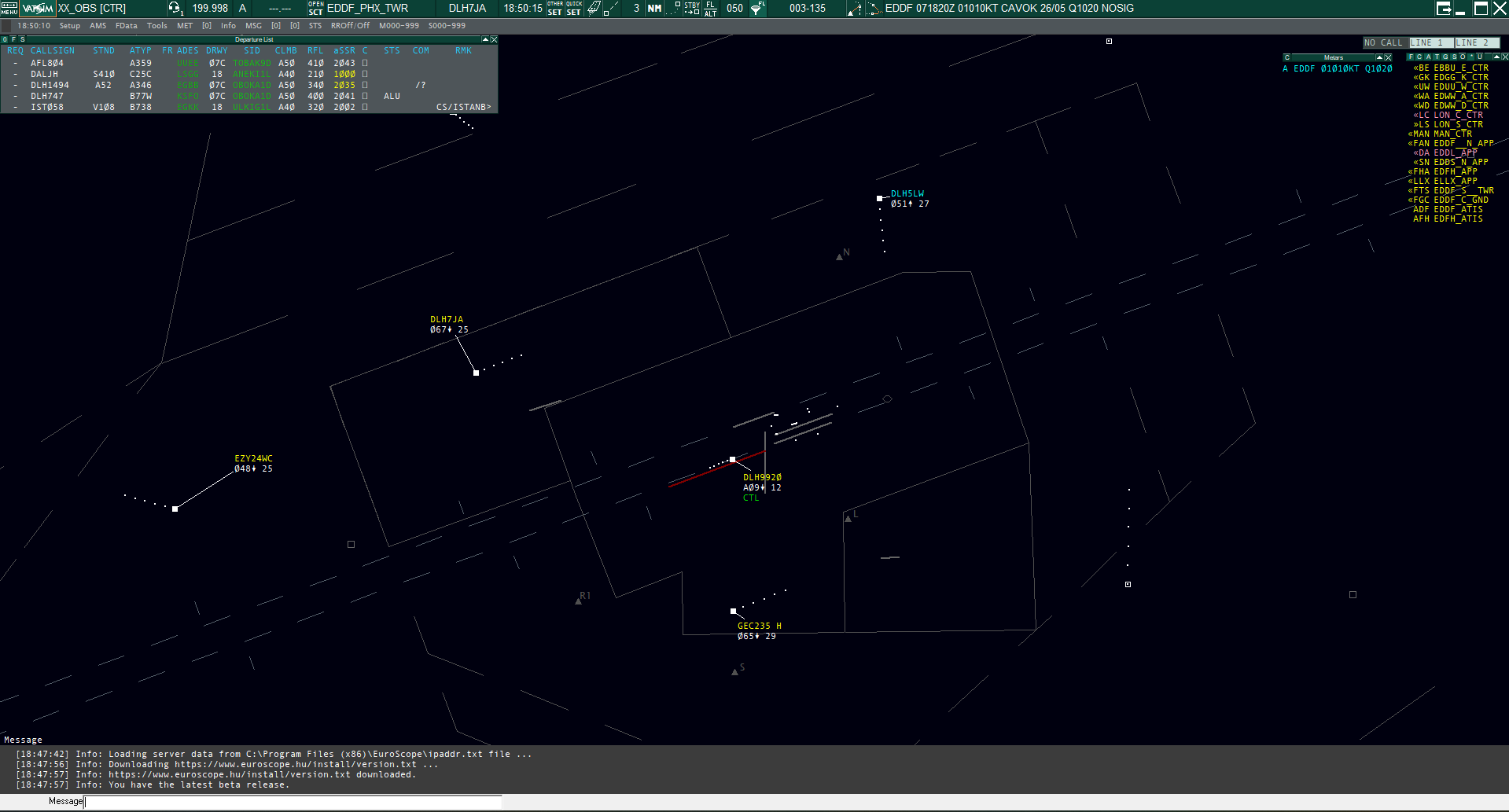
Frankfurt Tower - Radar View
Installation: Audio for Vatsim (AfV)Client
ToYou useare required to provide full send-and-receive voice communication youas havea controller at all times. The audio connection to install the additionalnetwork softwareis provided by one of two tools:
1. Audio for VatsimVATSIM Standalone Client [Download].
This that, runis the softwarefirst andclient checkimplementation of the settingsAudio for yourVATSIM audiosystem. devicesIt andis enterwell yourestablished, IDbut andwill password.not Whilereceive controlling,any it'sfurther recommendedupdates. The linked page also refers to runsomething called "VectorAudio", disregard this mention, you want the software"Standalone asClient".
2. toTrackAudio work[Download]
The innext thegeneration background.VATSIM Audio Client. Receives frequent updates. Please download a stable build.
ForAs pushPush-to-Talk toHotkey talkfor both tools, we can recommend the leftright ctrlCTRL (Strg)Strg buttonon atGerman yourkeyboards) keyboard.key.
If you have a primary frequency set in Euroscope, AfVboth tools will also set it'stheir frequency automatically after clicking on "connect".
Initial Setup
After installing the software you still need what we call the sectorfile,"sector file", "pack", or "AIRAC" (as it is updated with the AIRAC cycle every 28 days on Thursday) for the FIR you want to control or observe in. It contains all navigation data, plug-ins, settings and procedures used by your FIR and is designed to be ready-to-use.
You are required to keep your sector file up to date at all times and brief yourself on any changes!
Refer to our documentation on how and where youto get allupdate localbriefings.
Additional to the sectorfile we offer a variety of files and plugins pre installed, so that this package is ready to use for you. You can download the differentsector file packages for each FIR at files.aero-nav.com/EDXX.
Download the package and create a folder anywherewhere youyour likeuser has full read-write access (recommendedfor instance at C:\Users\). For a better overview we recommend to me\<me>\Documents\EuroScope)EuroScopenamehave theseparate folderfolders accordingif toyou theuse FIRmultiple where the data is coming frompackages (EDGG, EDMMEDMM, EDWW, or EDWW)FIS). CopyExtract all provided data into theits own, empty folder in the same structure as download,downloaded, as it will not work otherwise!
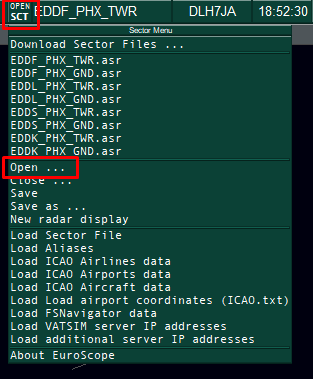
Select a Profile: After you've done the above steps, you can open Euroscope and you are prompted to select a profile (.prf file). Choose one of the provided ones and you are ready to use Euroscope and all it's features. Different views and airports are already predefined. Therefore you have to click on "OPEN SCT" in the green colored menu bar and select one of the listed .asr files or load one of other provided files via the "Open..." menu.
 |
 |
| Open a new .asr file for different views |
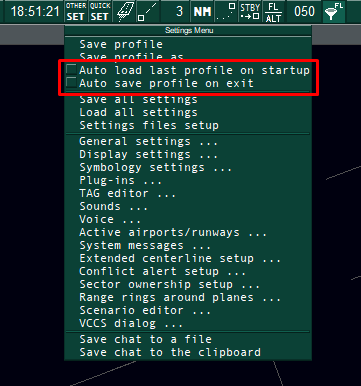
Disable "auto load" and "auto save" |
If you would like to open a different profile over the time or you have some problems with different views (e.g. you have choosen the "wrong" profile), it's highly recommended to disable the "Auto load last profile on startup" and "Auto save profile on exit" items to always select the profile manually.
You can find these options at OTHER SET at the top menu bar of Euroscope.
Login as Observer
You can always login as observer (OBS). Open your profile of choice and click on "Connect" at the upper left corner. As Callsign we suggest to use XX_OBS with XX replaced by your initials (the _OBS at the end is required). Enter your ID and password, check your rating (probably observer), choose your server and you can connect to Vatsim.
Listen to the Frequency: In order to listen to other controllers, you have to open AfV and click on connect thereafter. Then you need to click on the small "+" to enter the station Login into the search window you would like to listen to (e.g. EDDF_S_TWR). You will get a selection of frequencies to listen to. Click on RX and you will hear the controller and the pilots on that frequency.
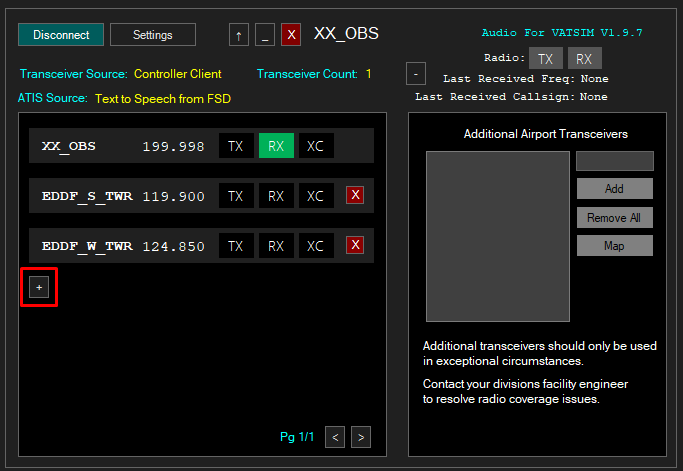
Audio for Vatsim when logged in as Observer
Select the active airport and runways: It is also recommended to activate the airport and it's select runways. Only if the airport is selected, you can see information in the different lists (e.g. you will only see Frankfurt departures in the departliste list, if EDDF is activated). Simply click on the runway symbol at the menu bar at the top, activate the airport for ARR and DEP, chose the runway and you can see everything the controller sees as well.
Reset visual point: If you can't see any traffic as Observer even if there should be some, it might be your visual point is to far away from the airport you are looking at.
To reposition your center of view, enter .vis into the command line at the bottom and click into the scope. Your center of view is repositioned thereafter.
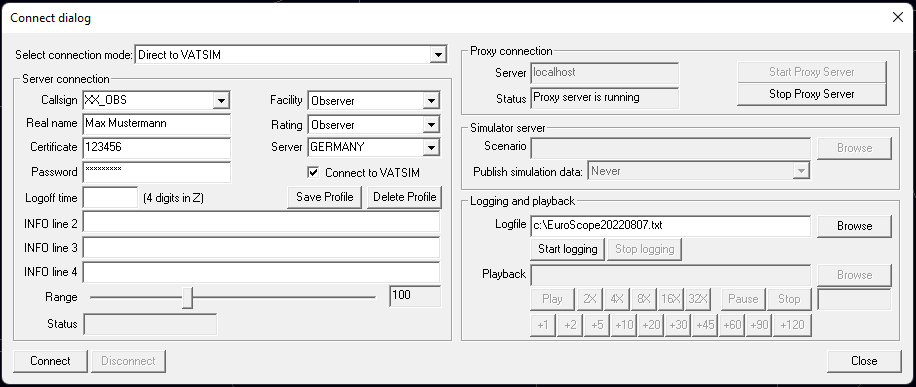
Euroscope connection dialog when login as Observer